
MEMORY CARD SETUP & TROUBLESHOOTING
Memory Card Setup & Troubleshooting
MEMORY CARD SUPPORT
Memory Card Setup & Troubleshooting
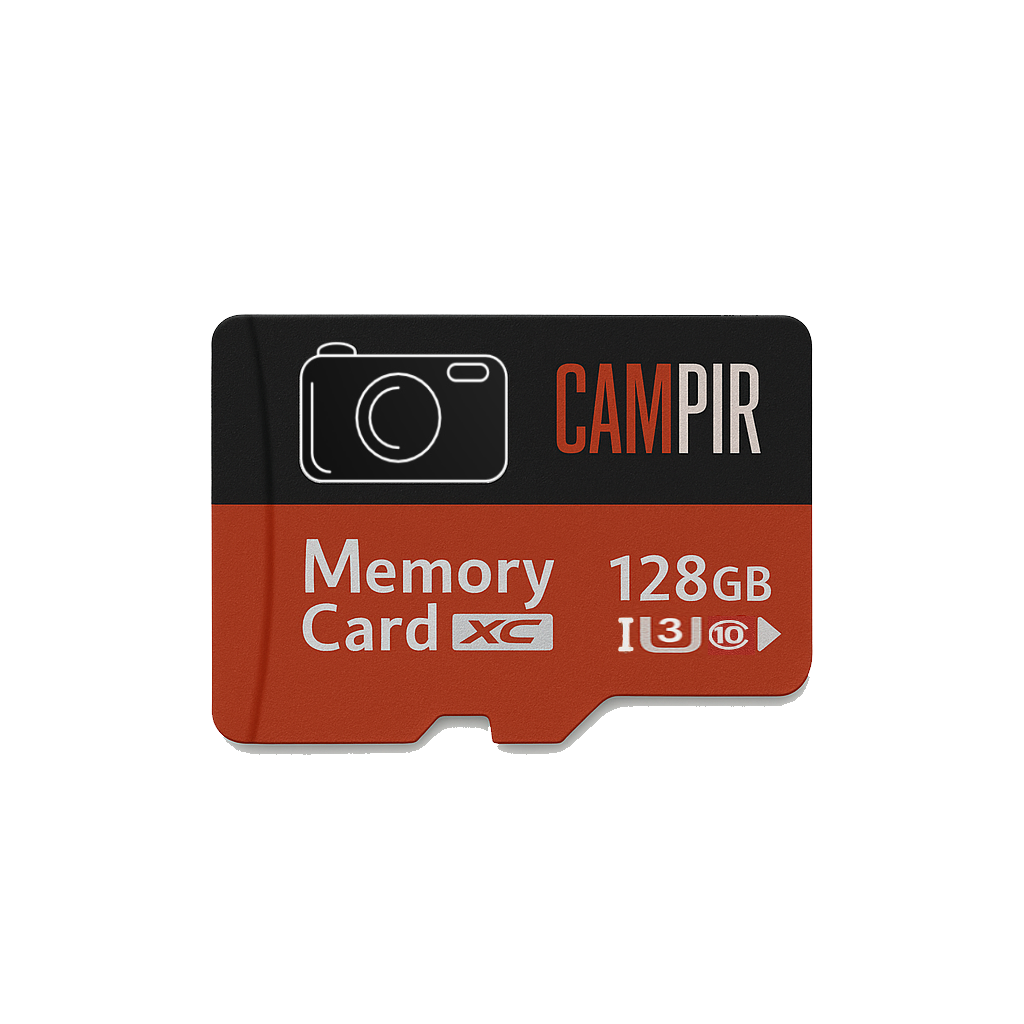
Use these steps to prepare your CAMPIR memory card and solve the most common recording or recognition problems.
Before first use
- Turn the dash cam, camera, phone or other device off before inserting or removing the card.
- Insert the card in the direction shown by your device. Do not force it.
- Turn the device on and use its built-in Format option before recording.
- After formatting, make a short test recording and play it back.
If the card is not detected
- Turn the device off, remove the card and insert it again securely.
- Check that the device supports the card capacity and microSDXC format.
- Format the card in the device rather than on a computer whenever possible.
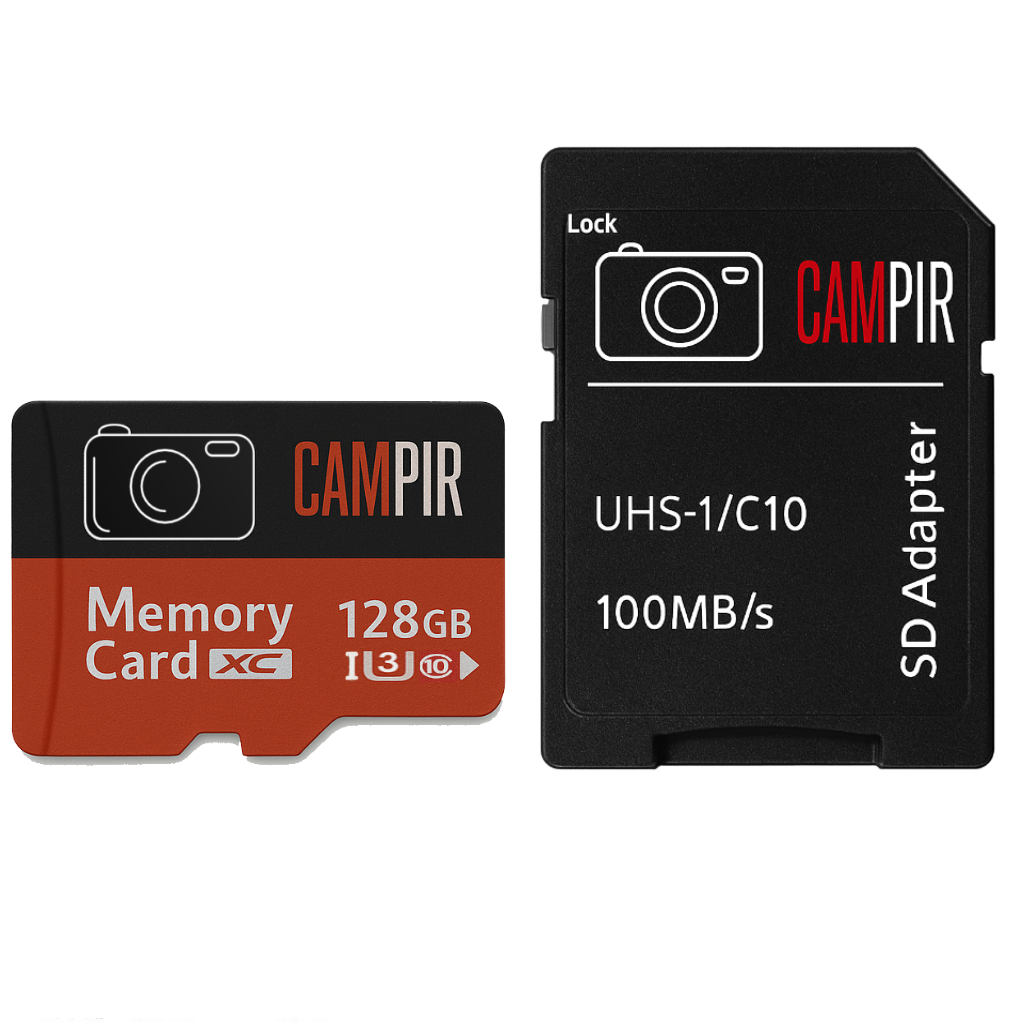
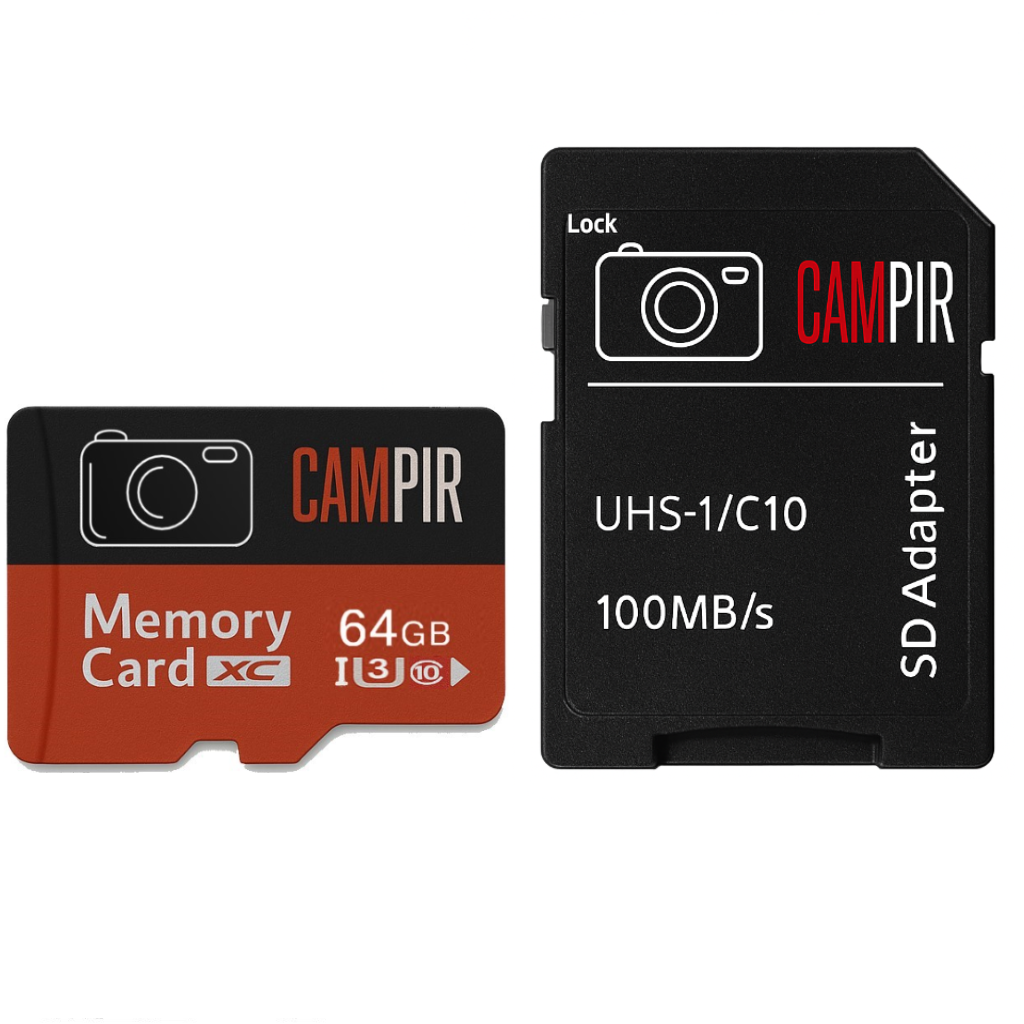
- Test the card in another compatible device or with the included SD adapter, if supplied.
- Restart the device after formatting.
Recording stops or files are corrupted
- Back up any files you want to keep, then format the card in the recording device.
- Make sure loop recording is enabled on a dash cam so old unlocked files can be replaced.
- Delete or unlock protected emergency files if they have filled the card.
- Turn the device off before removing the card to prevent file damage.
Formatting on a computer
Use computer formatting only when the device cannot format the card. Back up required files first because formatting erases the card.
- Windows: Open File Explorer, right-click the memory card, choose Format, select exFAT for 64GB or 128GB cards, then start.
- Mac: Open Disk Utility, select the memory card, choose Erase, select exFAT, then erase.
Reinsert the card and format it once more using the device menu before recording.
Still need help?
Contact CAMPIR with the card capacity, the device model and the exact error message. If possible, include a clear photo of the message shown by the device.