
4K Wi-Fi + GPS Support
Power, recording, rear camera, memory card, Wi-Fi, GPS and voice-control checks.
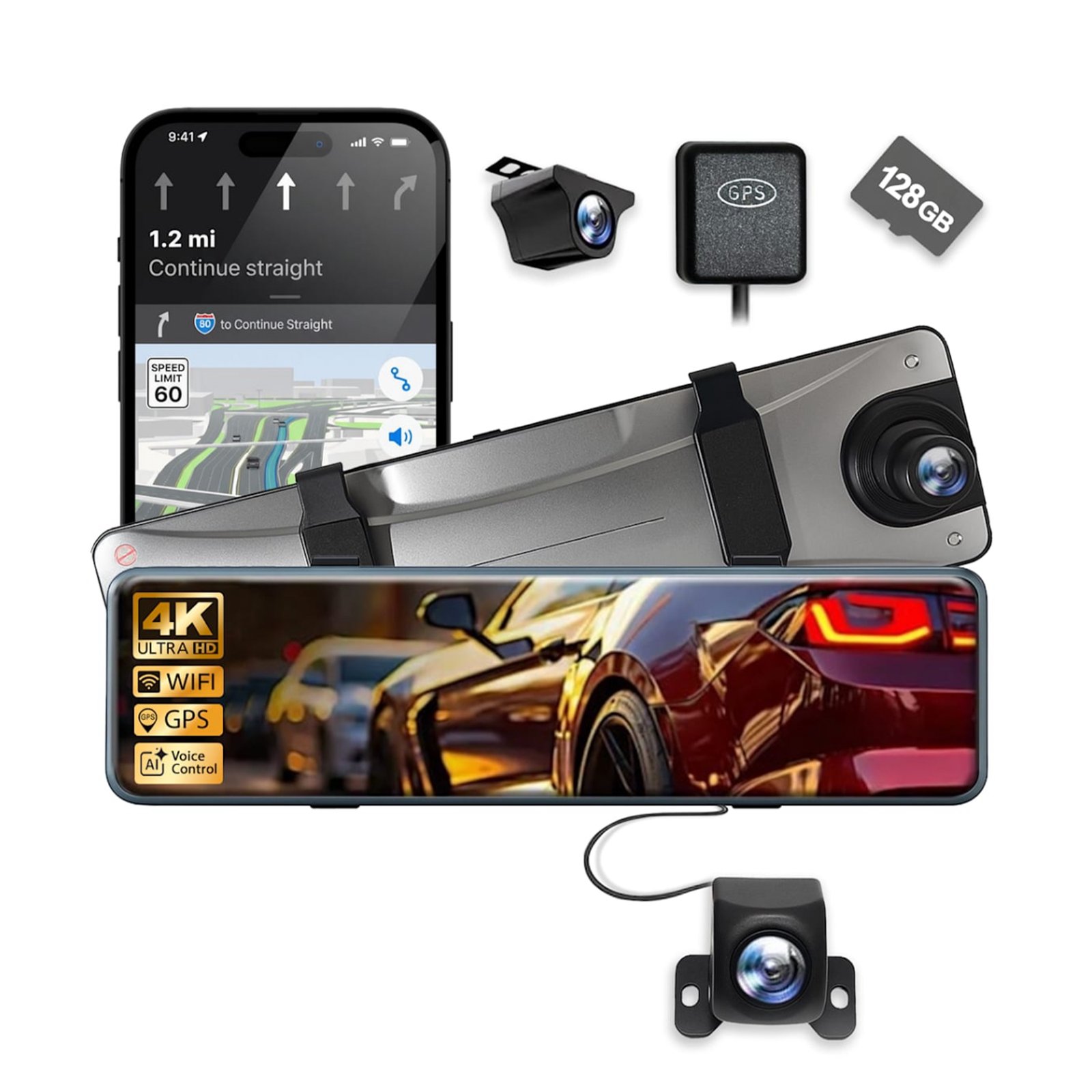 HS-12 4K Mirror Dash Cam12″ • Wi-Fi • GPS • AI Voice • 128GB included
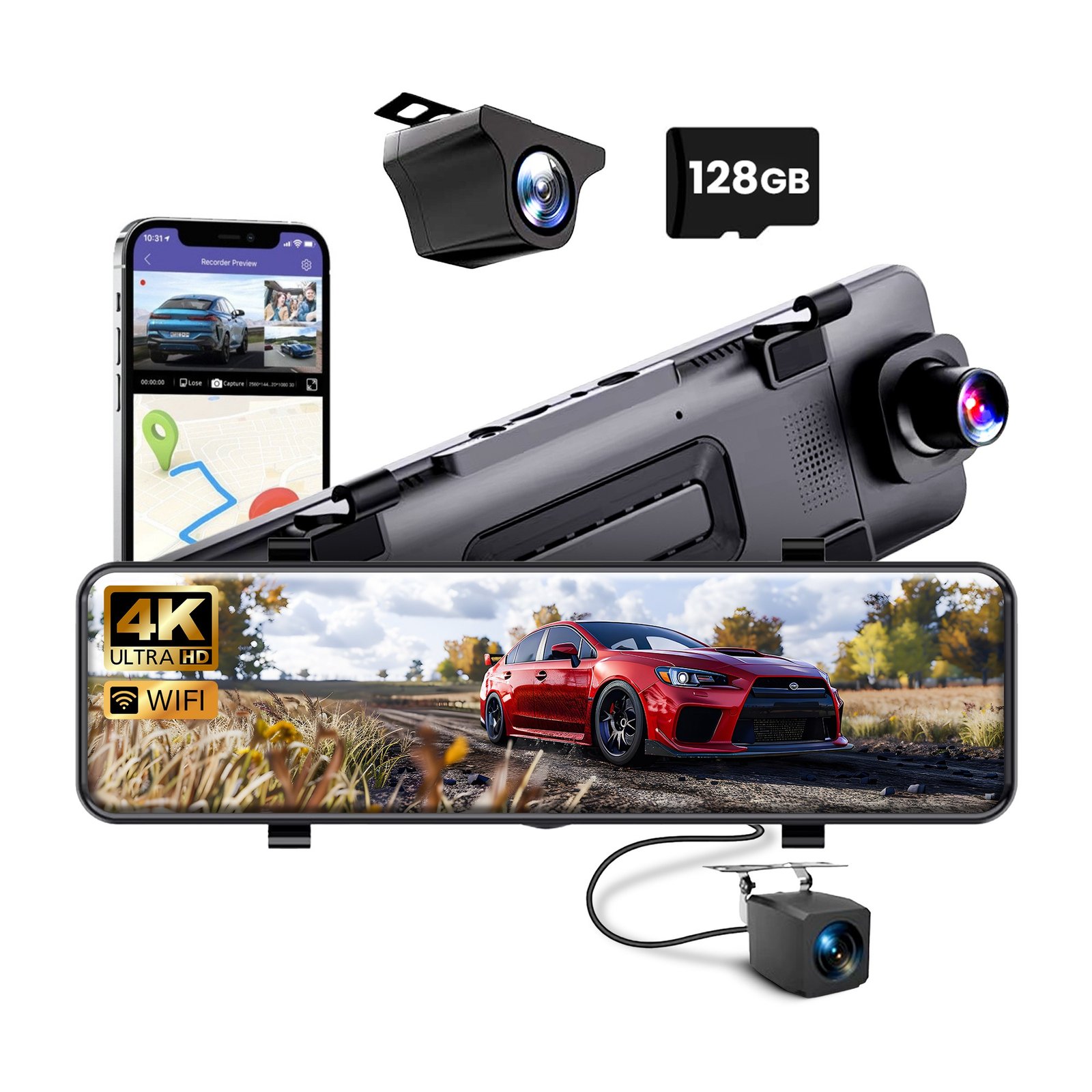 S-17 4K Mirror Dash Cam11″ • Wi-Fi • ADAS • BSD • LCA • 128GB included
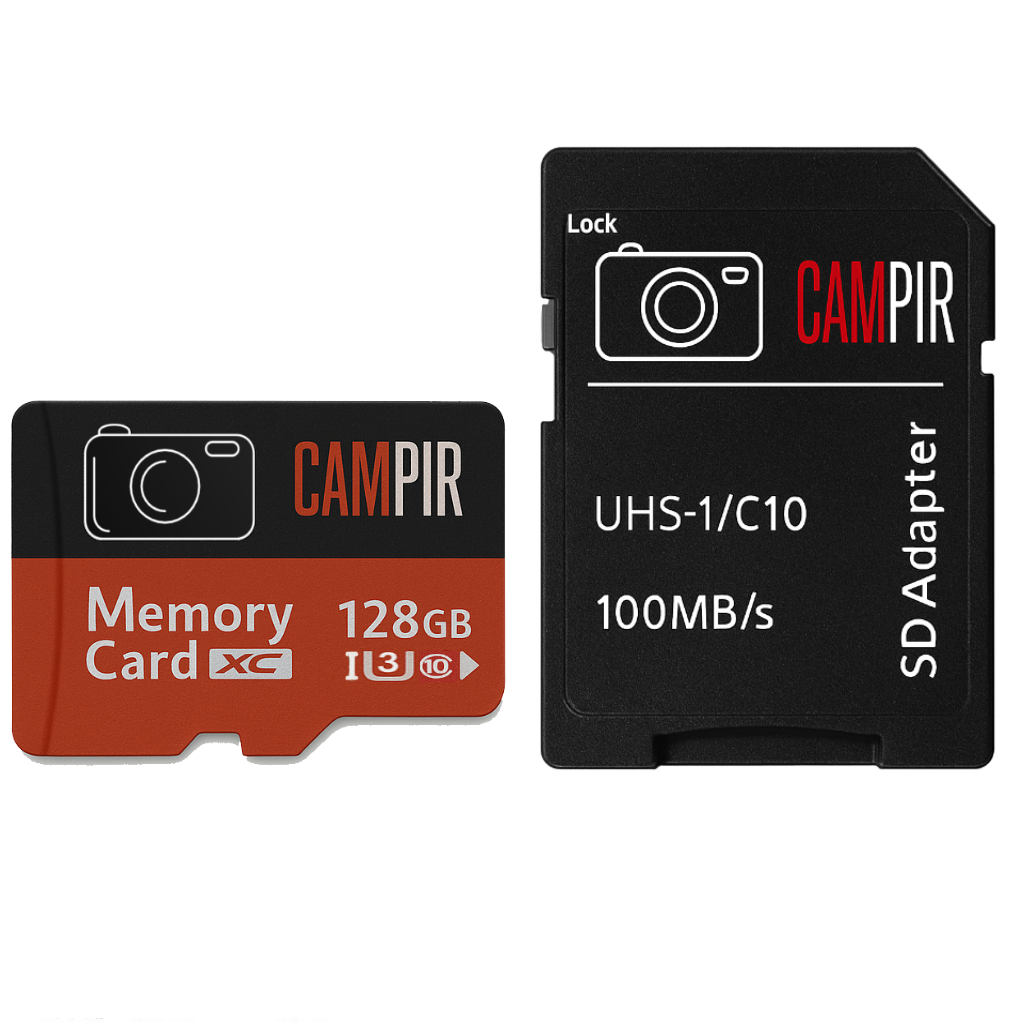 128GB High-Speed Memory Card + Adapter100MB/s • UHS-I U3 • Class 10 • Adapter included
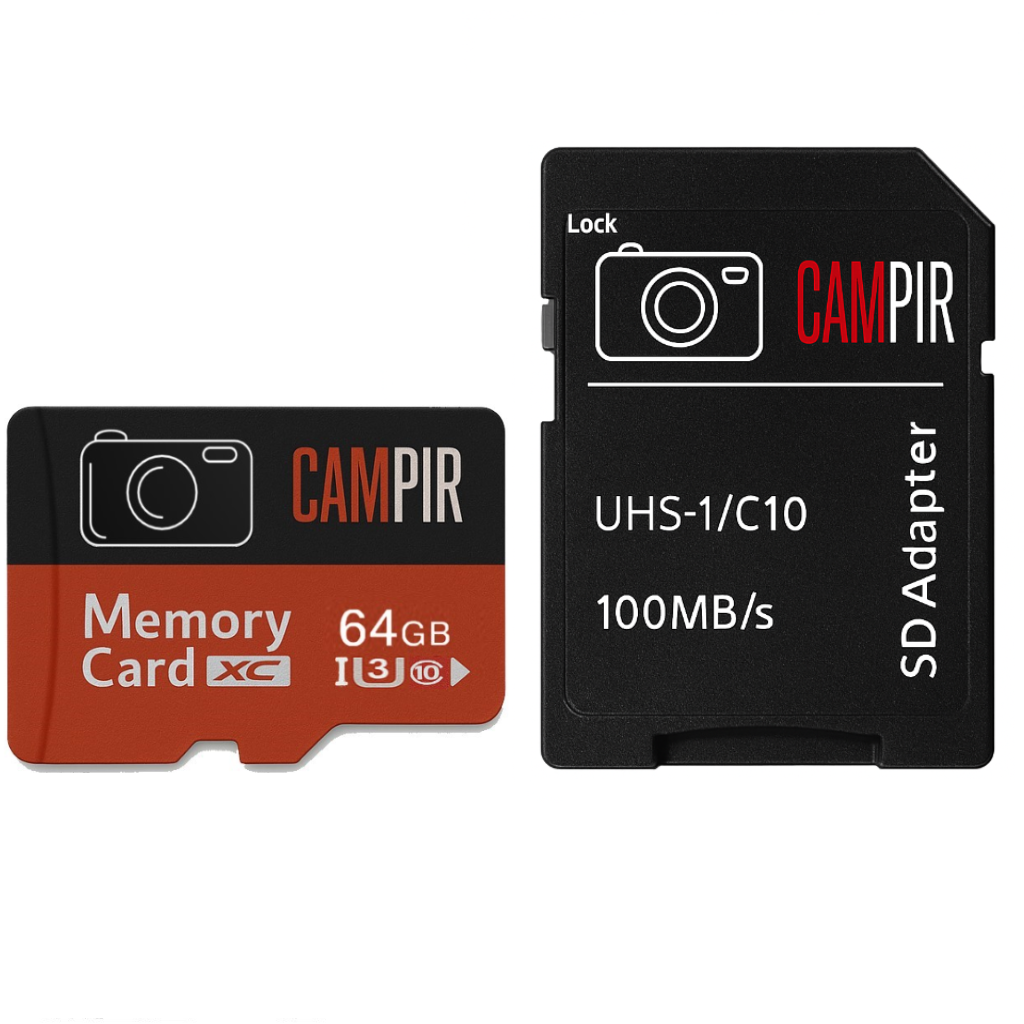 64GB High-Speed Memory Card + Adapter100MB/s • UHS-I U3 • Class 10 • Adapter included
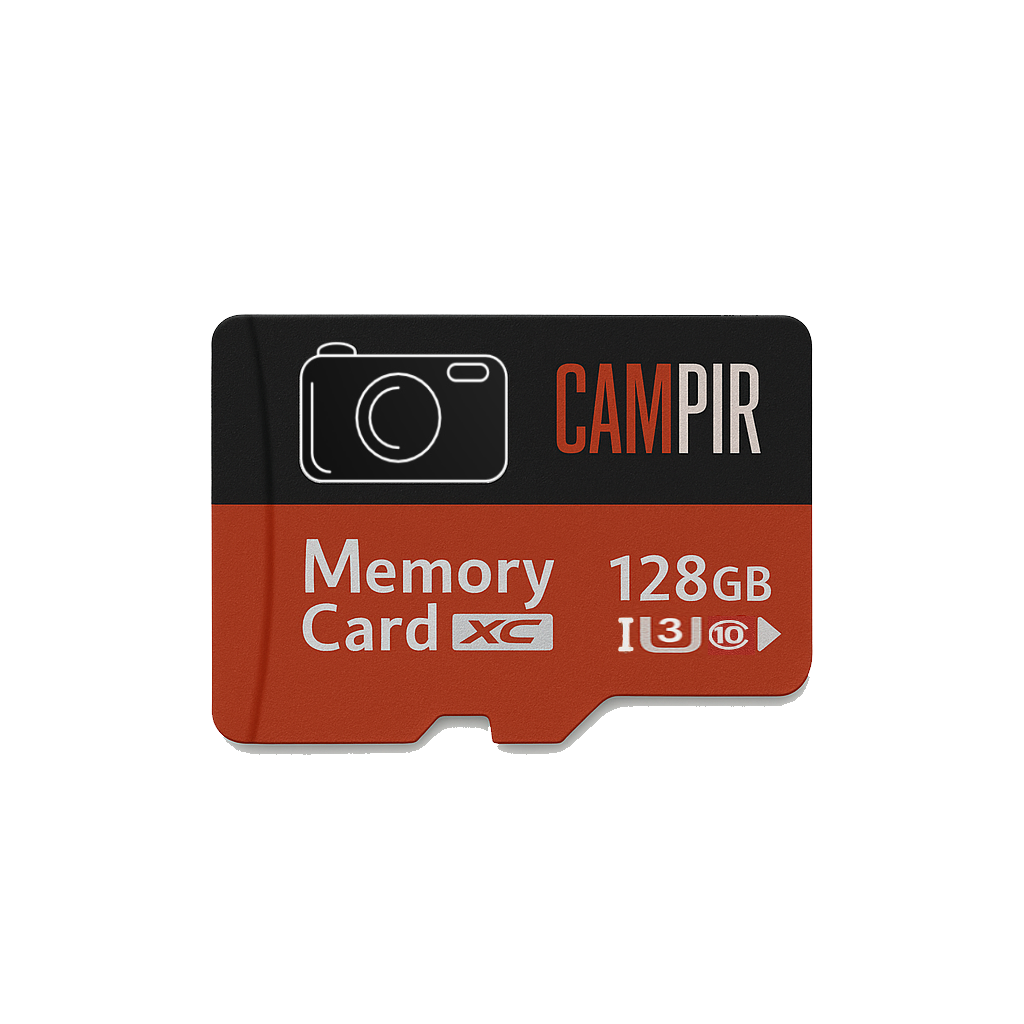 128GB Memory CardUHS-I U3 • Class 10 • Card only
Professional setup guidance and practical solutions for every CAMPIR dash cam.
Power, recording, rear camera, memory card, Wi-Fi, GPS and voice-control checks.
General troubleshooting plus VIIDURE app connection, download and Wi-Fi help.
Check the power cable at both ends, confirm the vehicle outlet is active, and restart the vehicle.
Confirm a compatible card is inserted, format it in the dash cam and verify storage is available.
Inspect rear-camera cable connections and select the correct front/rear display view.
Disconnect power safely, wait 30 seconds, reconnect it and use reset if directed.
Enable Wi-Fi on the dash cam, keep the phone close and refresh available networks.
This is normal: camera Wi-Fi is a local connection and does not provide internet.
Stay connected to dash-cam Wi-Fi, keep the app open and retry while safely parked.
Confirm the GPS accessory is connected and allow a clear view of the sky.

Power off the device, reinsert the card and confirm the device supports its capacity and format.
Back up files, format the card inside the dash cam and confirm loop recording is enabled.
Save required footage, unlock protected files and format the card in the recording device.